We have all been there. You pick up your iPhone to quickly check a text message or the weather forecast. Suddenly, a bright red notification bubble catches your eye. You tap it. Then you switch to another app. And another. Forty-five minutes later, you snap out of a TikTok or Instagram Reels trance, wondering where your morning went. The modern smartphone is an engineering marvel, but it is also a slot machine for human attention. If you are reading this, you are likely exhausted by the constant dopamine drain and are desperately seeking a way back to deep, uninterrupted focus. Welcome to the 'Dumb Phone' revolution.
The Problem with Modern Smartphones
Tech companies spend billions of dollars employing behavioral psychologists and neuroscientists to design user interfaces that are virtually impossible to put down. Every color, animation, and haptic vibration is carefully calibrated to trigger a dopamine release in your brain. This constant state of hyper-stimulation severely fractures our attention spans. When we try to sit down and engage in 'deep work'—a term popularized by author Cal Newport for the ability to focus without distraction on a cognitively demanding task—our brains crave the cheap, instant gratification of our phones.
We are losing our ability to read books, to sit alone with our thoughts, and to focus on our goals. But here is the paradox: completely abandoning the smartphone isn't practical for most of us.
Why Not Just Buy a Real 'Dumb Phone'?
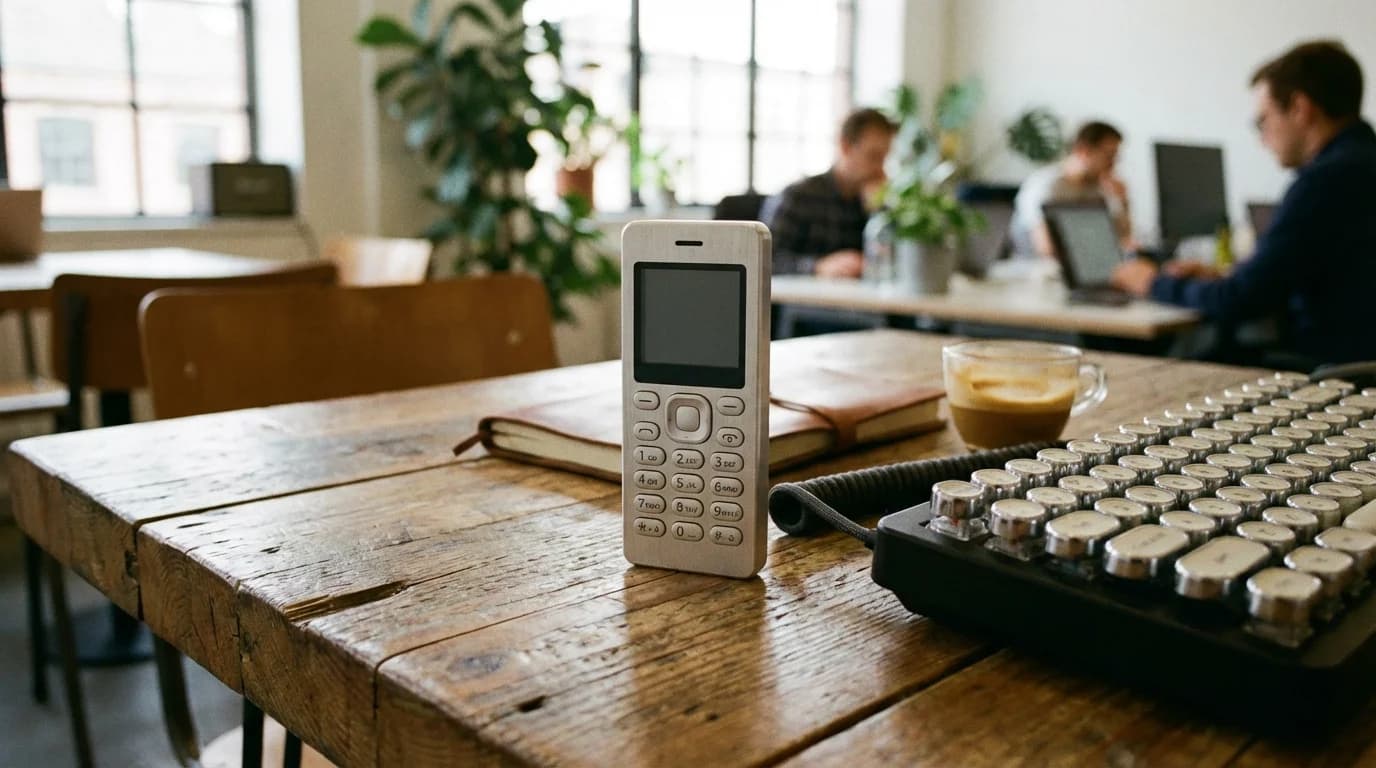
You might be wondering, 'If smartphones are so distracting, why don't I just buy a classic Nokia flip phone?' Many people have tried this digital detox method, but they usually hit a massive roadblock within the first week. We actually *need* some modern utilities. We need Google Maps to navigate new cities. We need Spotify or Apple Music for our gym workouts. We need two-factor authentication (2FA) apps for work, ride-sharing apps, and banking apps. The goal isn't to live like it is 1999; the goal is to harness the utility of technology without becoming a slave to it. The perfect solution is creating a 'dumb' iPhone—a device stripped of its addictive qualities but retaining its essential tools.
Step 1: The Visual Strip-Down (Grayscale Mode)
The first and most effective step in neutralizing your iPhone's addictive power is killing its vibrant colors. Bright reds and blues signal urgency and reward to your brain. By turning your screen to grayscale, Instagram looks dull, games lose their visual appeal, and your phone suddenly feels like a tool rather than a toy.
How to Enable Grayscale on iPhone:
- Go to Settings.
- Tap on Accessibility.
- Select Display & Text Size.
- Scroll down to Color Filters and turn it on.
- Select Grayscale.
Pro Tip: Go back to the main Accessibility menu, scroll down to 'Accessibility Shortcut', and assign 'Color Filters'. Now, you can triple-click the side button of your iPhone to toggle grayscale on and off when you absolutely need color (like checking a photo you just took).
Step 2: The Minimalist Home Screen
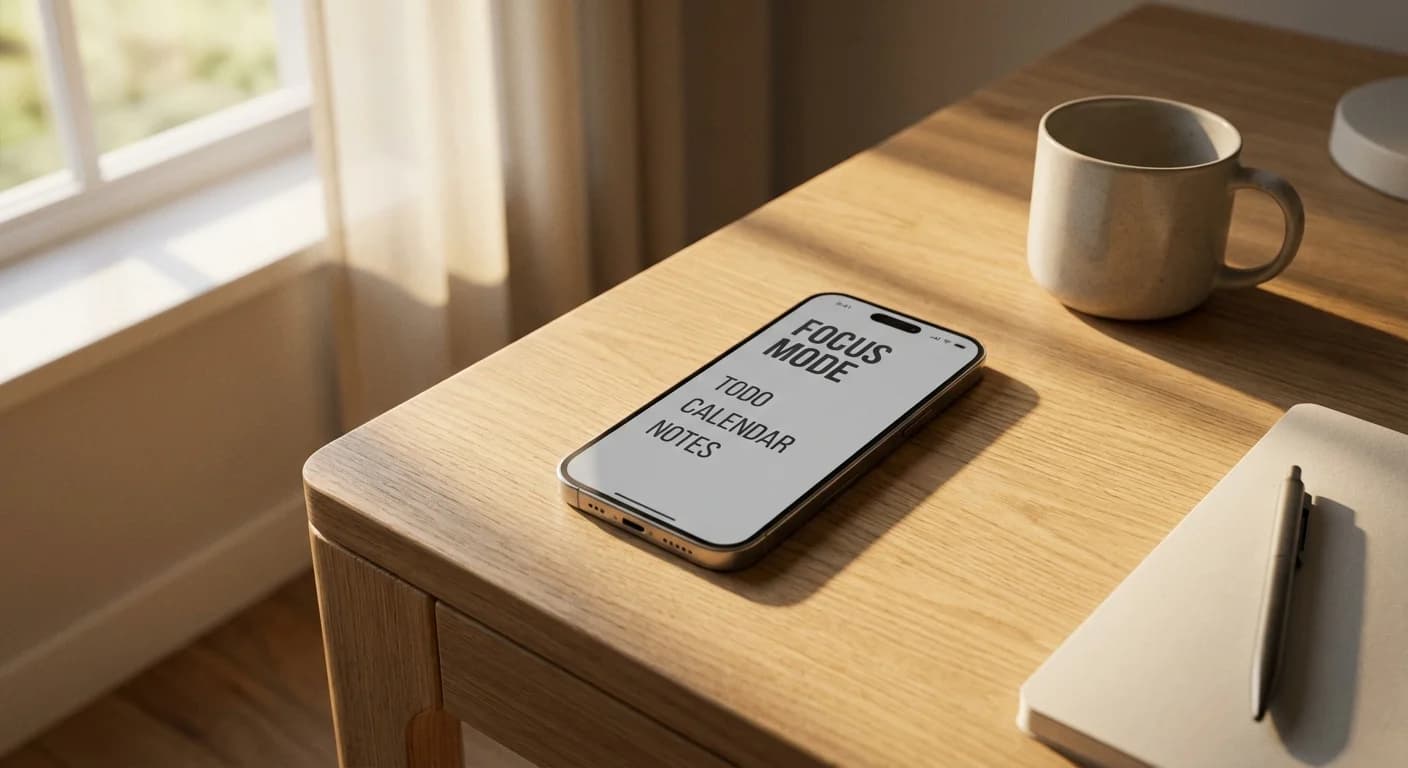
The grid of colorful apps on your home screen is a visual minefield. To achieve deep focus, your home screen should be a blank canvas. We are going to hide all your apps and rely entirely on the App Library or the Search function (Spotlight) to open what you need. This adds 'friction' to your usage. If you have to manually type 'Instagram' to open it, it gives your brain a crucial two-second window to ask, 'Wait, do I actually want to do this right now?'
How to Clean Your Home Screen:
- Long press on any empty space on your home screen to enter 'Jiggle Mode'.
- Tap the dots at the bottom of the screen (the page indicator).
- Uncheck every single home screen page except for one.
- On that one remaining page, remove every app so it is completely blank.
- Bonus: Change your wallpaper to a solid, dark color or a simple, non-distracting pattern.
Step 3: The Purge - App Deletion Strategy
Now that your screen is gray and blank, it is time for the hard part: The Purge. You cannot rely on willpower alone to stop scrolling; you must remove the temptation completely. Delete all social media apps from your phone. Yes, all of them. Twitter, Instagram, TikTok, Facebook, Reddit. If you truly need to check them, log in through the Safari browser. The mobile web versions are intentionally clunky and less engaging, which naturally limits the time you will spend on them.
Keep only 'Utility Apps'. A utility app is an app you open with a specific purpose, complete a task, and close immediately. Examples include Maps, Banking, Uber, Notes, Calendar, and Camera. If an app has an infinite scroll feature, it gets deleted.
Step 4: Notifications - The Silent Treatment
Your phone should never buzz, beep, or light up unless it is an actual emergency or an important call from a loved one. Every non-essential notification is a theft of your focus.
How to master your notifications:
- Go to Settings > Notifications and methodically turn off notifications for almost every app.
- Leave notifications on for Phone Calls, Text Messages (only from VIPs), and Calendar reminders.
- Utilize Apple's Focus Modes. Create a 'Deep Work' focus mode that only allows calls from your favorite contacts and silences absolutely everything else. Set this Focus mode to activate automatically when you arrive at your office or during your designated working hours.
Step 5: Assistive Access (The Nuclear Option)
If you want to take your dumb phone setup to the absolute extreme, Apple introduced a hidden feature in iOS 17 called 'Assistive Access'. Designed originally as an accessibility feature for cognitive ease, it literally transforms your iPhone UI into a hyper-minimalist, giant-buttoned interface that restricts access to only a few pre-selected apps. You cannot swipe, you cannot access the control center, and you cannot get distracted. It turns your iPhone into a beautifully modern, literal dumb phone.
How to setup Assistive Access:
- Go to Settings > Accessibility > Assistive Access.
- Tap 'Set Up Assistive Access'.
- Choose the apps you want available (e.g., Calls, Messages, Camera, Maps).
- Set a passcode. When you enter this mode, your phone is locked into this interface until you triple-click the side button and enter your specific passcode to exit.
Supercharge Your Newfound Focus
Combine your distraction-free 'dumb' iPhone setup with this revolutionary 7-minute audio brainwave to unlock elite levels of deep work, creativity, and flow state.
Learn MoreComparing Your Options
To help you understand the benefits of this setup, let's look at how it compares to standard usage and buying an actual dumb phone.
| Feature | Standard iPhone | Classic Dumb Phone | The 'Dumb' iPhone Setup |
|---|---|---|---|
| High-Quality Camera | Yes | No | Yes |
| Navigation / Maps | Yes | No | Yes |
| Distraction Free | No (Highly Addictive) | Yes | Yes (Customizable) |
| Access to Spotify/Music | Yes | No | Yes |
| Cost | Already Owned | Extra $50 - $100 | Free |
Life After the Setup: What to Expect
The first few days of using a 'dumb' iPhone will feel strange. You will experience phantom vibrations. You will unlock your phone out of habit, stare at the blank, gray screen, and feel a brief wave of anxiety or boredom. This is normal; it is your brain expecting its regular hit of digital dopamine. Lean into that boredom. Boredom is the crucible where creativity and deep focus are forged.
By week two, you will notice a profound mental shift. Your baseline anxiety will lower. You will find yourself more present in conversations. You will have more time in your day—often reclaiming 2 to 4 hours previously lost to mindless scrolling. You will finally be able to sit down at your desk, dive into a project, and experience true, uninterrupted flow.
Conclusion
You don't need to throw your expensive technology in the trash to reclaim your attention. Your iPhone is an incredibly powerful tool; you just need to ensure you are the one using the tool, rather than letting the tool use you. By applying grayscale, simplifying your home screen, managing notifications, and utilizing Focus Modes or Assistive Access, you can create the ultimate productivity machine. Reclaim your focus today, and watch your personal and professional life transform.
Frequently Asked Questions (FAQ)
1. Will I miss important emails or messages if I turn off notifications?
No. The key is to customize your Focus Modes. You can easily whitelist important contacts like your boss, spouse, or kids, so their calls and texts always break through. For emails, dedicate specific times of the day (e.g., 9 AM and 4 PM) to manually open the app and check your inbox.
2. Does the Grayscale mode save battery life?
Yes, slightly. If you have an iPhone with an OLED screen, displaying grayscale and darker colors uses less power than displaying bright, vibrant colors. However, the real battery saving comes from you significantly reducing your screen time.
3. How do I quickly turn off grayscale when I need to view a photo?
The fastest way is setting up the 'Accessibility Shortcut'. Go to Settings > Accessibility > Accessibility Shortcut, and select 'Color Filters'. Now, triple-clicking the right side button of your iPhone will instantly toggle the color back on.
4. Isn't it annoying to type app names into the search bar every time?
Yes, and that is exactly the point! We want to introduce 'friction' to your phone usage. The slight annoyance of having to type 'Instagram' gives you a moment of mindfulness to stop and ask yourself if you actually need to open the app.
5. What if I genuinely need social media for my job?
If you manage social media professionally, keep the apps but lock them down using Apple's Screen Time limits. Set a strict daily allowance. Alternatively, use social media management tools on your desktop computer and keep the actual native apps off your mobile phone.